

Traceloop’s OpenLLMetry is an open source project that allows you to easily start monitoring and debugging the execution of your LLM app.
Traceloop’s non-intrusive instrumentation combined with Portkey’s intelligent gateway provides comprehensive observability without modifying your application code, while adding routing intelligence, caching, and failover capabilities.

Why Traceloop + Portkey?

Non-Intrusive Monitoring

Automatic instrumentation without changing your application code

OpenTelemetry Native

Built on industry-standard OpenTelemetry for maximum compatibility

Flexible Export Options

Send traces to Portkey or any OpenTelemetry-compatible backend

Enhanced Intelligence

Portkey adds gateway features like caching, fallbacks, and load balancing

Quick Start

Prerequisites

  • Python
  • Portkey account with API key
  • OpenAI API key (or add it to Model Catalog)

Step 1: Install Dependencies

Install the required packages for Traceloop and Portkey integration:
pip install openai traceloop-sdk portkey-ai

Step 2: Initialize Traceloop

Configure Traceloop to send traces to Portkey’s OpenTelemetry endpoint:
from traceloop.sdk import Traceloop

# Initialize Traceloop with Portkey's endpoint
Traceloop.init(
    disable_batch=True,  # Process traces immediately
    api_endpoint="https://api.portkey.ai/v1/logs/otel",
    headers="x-portkey-api-key=YOUR_PORTKEY_API_KEY",
    telemetry_enabled=False  # Disable Traceloop's own telemetry
)

Step 3: Configure Portkey Gateway

Set up the OpenAI client to use Portkey’s intelligent gateway:
from openai import OpenAI
from portkey_ai import createHeaders

# Use Portkey's gateway for intelligent routing
client = OpenAI(
    api_key="PORTKEY_API_KEY",
    base_url="https://api.portkey.ai/v1",
    default_headers=createHeaders(
        api_key="PORTKEY_API_KEY",
        provider="@openai-prod"  # Your AI Provider slug from Model Catalog
    )
)

Step 4: Make Instrumented LLM Calls

Your LLM calls are now automatically traced by Traceloop and enhanced by Portkey:
# Make calls through Portkey's gateway
# Traceloop automatically instruments the call
response = client.chat.completions.create(
    model="gpt-4o",
    messages=[{"role": "user", "content": "Explain the benefits of OpenTelemetry for LLM applications"}],
    temperature=0.7
)

print(response.choices[0].message.content)

# You now get:
# 1. Automatic, non-intrusive tracing from Traceloop
# 2. Gateway features from Portkey (caching, fallbacks, routing)
# 3. Combined insights in Portkey's dashboard

Complete Example

Here’s a full example bringing everything together:
from traceloop.sdk import Traceloop
from openai import OpenAI
from portkey_ai import createHeaders

# Step 1: Initialize Traceloop with Portkey endpoint
Traceloop.init(
    disable_batch=True,
    api_endpoint="https://api.portkey.ai/v1/logs/otel",
    headers="x-portkey-api-key=YOUR_PORTKEY_API_KEY",
    telemetry_enabled=False
)

# Step 2: Configure Portkey Gateway
client = OpenAI(
    api_key="PORTKEY_API_KEY",
    base_url="https://api.portkey.ai/v1",
    default_headers=createHeaders(
        api_key="PORTKEY_API_KEY",
        provider="@openai-prod"
    )
)

# Step 3: Make instrumented calls
response = client.chat.completions.create(
    model="gpt-4o",
    messages=[
        {"role": "system", "content": "You are a helpful assistant."},
        {"role": "user", "content": "What makes observability important for production AI?"}
    ]
)

print(response.choices[0].message.content)

Next Steps

Configure Gateway

Set up intelligent routing, fallbacks, and caching

Model Catalog

Manage AI providers, credentials, and model access centrally

View Analytics

Analyze costs, performance, and usage patterns

Set Up Alerts

Configure alerts for anomalies and performance issues

See Your Traces in Action

Once configured, navigate to the Portkey dashboard to see your Traceloop instrumentation combined with gateway intelligence:
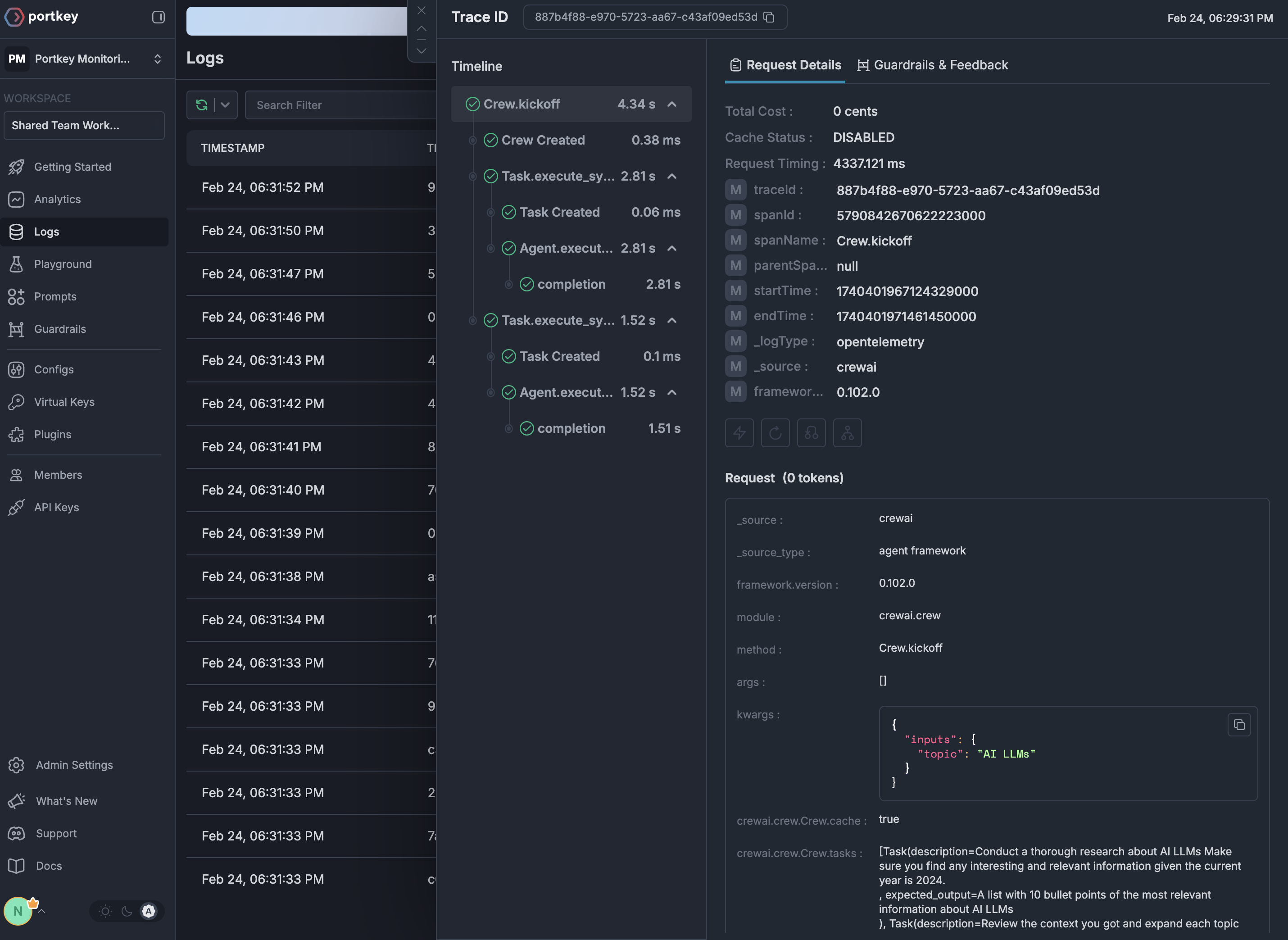
OpenTelemetry traces in Portkey
Last modified on March 18, 2026