

For standard deployments, use AI Gateway OAuth or External OAuth instead.
Overview
CAS bridges the MCP Gateway’s OAuth flow with Palo Alto Networks’ centralized authentication. Instead of users logging in with standard credentials, they authenticate through their organization’s identity provider (Entra ID, Okta, or on-prem Active Directory) via CAS.How It Works
Prerequisites
Before CAS authentication works for your MCP Gateway:- CIE Directory Sync configured — Users must be provisioned into workspaces via CIE Directory Sync. CAS authenticates users, but CIE is what provisions them into the system. Without CIE sync, authenticated users cannot be resolved.
- Authentication Profile selected — An Auth Profile must be selected in the CIE Directory Sync configuration. This profile determines which identity provider is used for the CAS login flow. Auth Profiles are managed in the CIE Authentication Profiles console.
Setup
CAS authentication is automatically enabled. No additional configuration is required on the MCP Gateway side — the gateway routes authentication through CAS.What the Admin Needs to Configure
Email claim is required. CAS identifies users by their email address. The identity provider must include the user’s email in the authentication claims. If the email claim is missing, the user cannot be resolved and authentication will fail.Ensure that the User Identity Attribute selected in CIE Directory Sync (UPN or Mail) matches the email attribute returned by your identity provider during CAS authentication.
User Experience
First-Time Connection
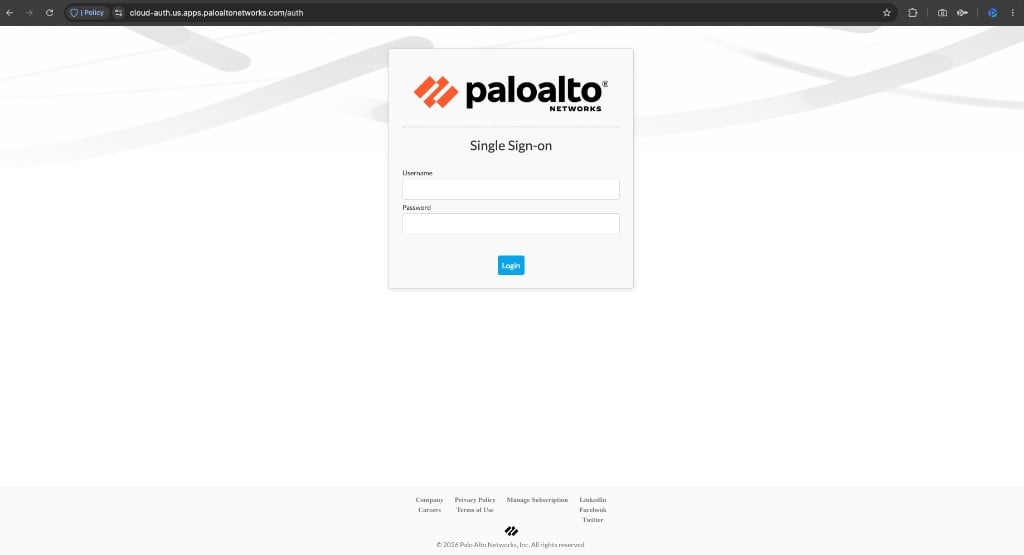
When a user connects an MCP client to the gateway for the first time, the MCP client opens a browser window and the CAS login page is shown. Step 1 — Authenticate with your identity provider The user enters their organization credentials on the CAS Single Sign-on page. This page is hosted by Palo Alto Networks and connects to your configured identity provider.The login page appearance may vary depending on your configured Authentication Profile and identity provider. The example below shows the default CAS login for a local directory. Organizations using external IdPs (e.g., Entra ID, Okta) will see their IdP’s login page instead.
If you are a member of multiple workspaces where the MCP server is provisioned, a workspace dropdown will appear on the consent page. Select the workspace you want the access token to be scoped to.
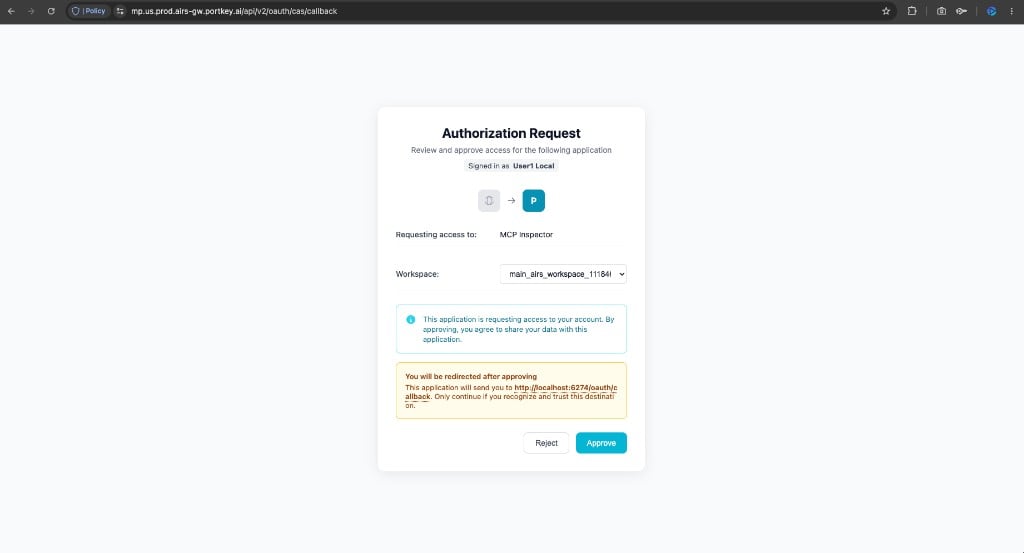
Subsequent Connections
After the initial authentication, the MCP client uses refresh tokens to maintain access. Users are not prompted to log in again until the refresh token expires or is revoked. Approval is also remembered — subsequent connections to the same MCP server skip the consent page.Comparison with Other Auth Methods
Troubleshooting
Related
Portkey is now PRISMA AIRS AI Gateway. See it in action.
Contact Us