

Quickstart
Add an MCP server and connect an MCP client in 5 minutes.
Integrations
Connect Claude Desktop, Cursor, VS Code, or custom agents.
How It Works
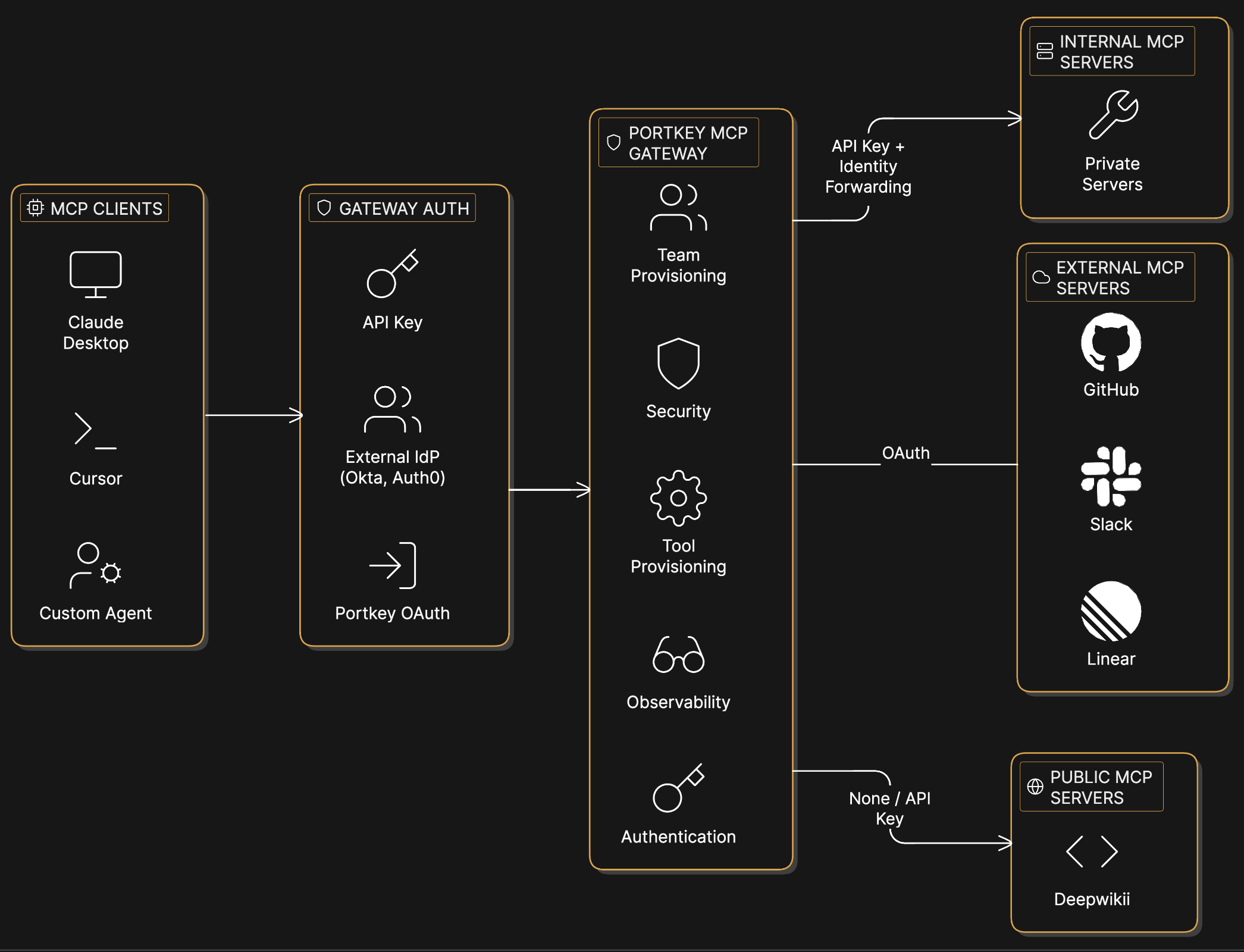
Capabilities
Authentication
Configure OAuth, API keys, or custom headers per server. Supports external IdPs like Okta and Auth0.
Access Control
Control which workspaces and users can access each server.
Tool Provisioning
Enable or disable specific tools per user when a server exposes tools that shouldn’t be available to everyone.
Observability
Every tool call logged with user, parameters, and response. Filter by server, user, or time range.
Rate Limits
Throttle MCP tool calls by request count or token consumption per API key, server, or tool.
Guardrails
Content filters and approval workflows per server.
Troubleshooting
Fix common connection, authentication, OAuth, and scope issues.
Usage
Add an MCP server to your organization’s registry, configure its authentication, and provision access to workspaces. Then connect any MCP client to Portkey’s endpoint:MCP Registry
The MCP Registry is where MCP servers are configured and managed. Add servers, set up authentication, and control which workspaces can access them.MCP Registry
Add servers, configure authentication, and manage access.
- Add MCP servers (external services, internal APIs, or public servers)
- Configure authentication (OAuth, API keys, custom headers)
- Provision access to specific workspaces
- View usage across the organization
- Browse available servers and tools in your workspace
- Copy connection URLs
- Test tools directly from the UI
Portkey is now PRISMA AIRS AI Gateway. See it in action.
Contact Us