> ## Documentation Index
> Fetch the complete documentation index at: https://docs.portkey.ai/docs/llms.txt
> Use this file to discover all available pages before exploring further.
# CIE Directory Sync
> Sync users and groups from Palo Alto Networks Cloud Identity Engine (CIE) into SCM's AI Gateway for automated workspace provisioning.
# CIE Directory Sync
CIE (Cloud Identity Engine) Directory Sync allows you to pull users and groups from your organization's identity provider directories — such as **Entra ID (Azure AD)**, **Okta**, or **On-Premises Active Directory** — into SCM via Palo Alto's Cloud Identity Engine. Once synced, you can map CIE groups to SCM's AI Gateway workspaces so that users are **automatically provisioned** into the correct workspaces.
***
## Overview
CIE Directory Sync is available for organizations running in **SCM (Strata Cloud Manager)**. It replaces the need for manual user provisioning or standalone SCIM integration by leveraging CIE as the centralized identity source.
### How It Works
1. **CIE aggregates directories** — Your organization's identity providers (Entra ID, Okta, on-prem AD) are connected to CIE via the Strata Cloud Manager. CIE syncs and caches user/group data from these directories.
2. **Admin maps groups to workspaces** — An admin selects which CIE directory to connect, then maps CIE groups to AI Gateway workspaces.
3. **Users are auto-provisioned** — Background sync periodically pulls group membership changes from CIE and provisions/deprovisions users in the mapped workspaces automatically.
### Key Concepts
| Concept | Description |
| -------------------------------- | ----------------------------------------------------------------------------------------------------------------------------------------------------------------------------------------------------------------------------------------------------------------------------------------------- |
| **Domain (Connected Directory)** | An identity provider directory synced into CIE. Each domain represents a separate directory source. |
| **Tenant ID** | The CIE tenant identifier for your organization, auto-provisioned during Onboarding. You never need to enter this manually. |
| **Group** | A directory group from CIE (e.g., a security group). Groups contain users that can be mapped to workspaces. |
| **Group-Workspace Mapping** | A 1:1 link between a CIE group and an AI Gateway workspace. All members of the mapped group are automatically provisioned into that workspace. |
| **User Identity Attribute** | The CIE user attribute used as the email address — either **UPN (User Principal Name)** or **Mail (Primary Email)**. |
| **Auth Profile** | The authentication profile used to validate user identity during MCP inbound authentication. These profiles are synced from [Authentication Profiles](https://docs.paloaltonetworks.com/identity/cloud-identity-engine/authenticate-users-with-the-cloud-identity-engine) configured under CIE. |
***
## Prerequisites
Before configuring CIE Directory Sync in SCM's AI Gateway, ensure the following:
1. **CIE is provisioned for your organization** — Your Strata Cloud Manager tenant must have CIE activated with a Directory Sync instance. This is set up during Onboarding.
2. **At least one directory is connected in CIE** — Navigate to CIE and verify that at least one directory (Entra ID, Okta, or On-Premises) has been added and has a successful sync status.
3. **You have SCM admin access** — Only organization admins can configure Directory Sync in SCM's AI Gateway.
CIE Directory Sync is only available for SCM Tenants. It is not available in standalone deployments. For non-SCM deployments, use [SCIM Provisioning](/docs/product/enterprise-offering/org-management/scim/scim) instead.
***
## Setting Up Directories in CIE
Before SCM's AI Gateway can sync from CIE, you need to connect your identity provider directories in CIE. This is done in the **Strata Cloud Manager → Cloud Identity Engine** console.
For more information about CIE, see the [Cloud Identity Engine documentation](https://docs.paloaltonetworks.com/identity/cloud-identity-engine/cloud-identity-engine-overview).
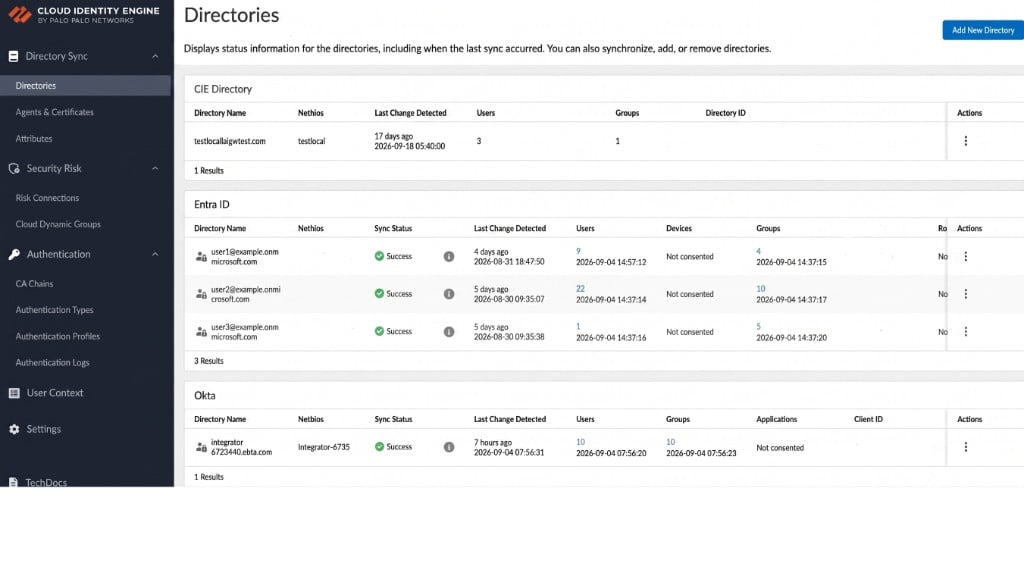 ### Adding a New Directory
1. In the CIE console, navigate to **Directory Sync → Directories**.
2. Click **Add New Directory**.
3. You will see the directory type options:
### Adding a New Directory
1. In the CIE console, navigate to **Directory Sync → Directories**.
2. Click **Add New Directory**.
3. You will see the directory type options:
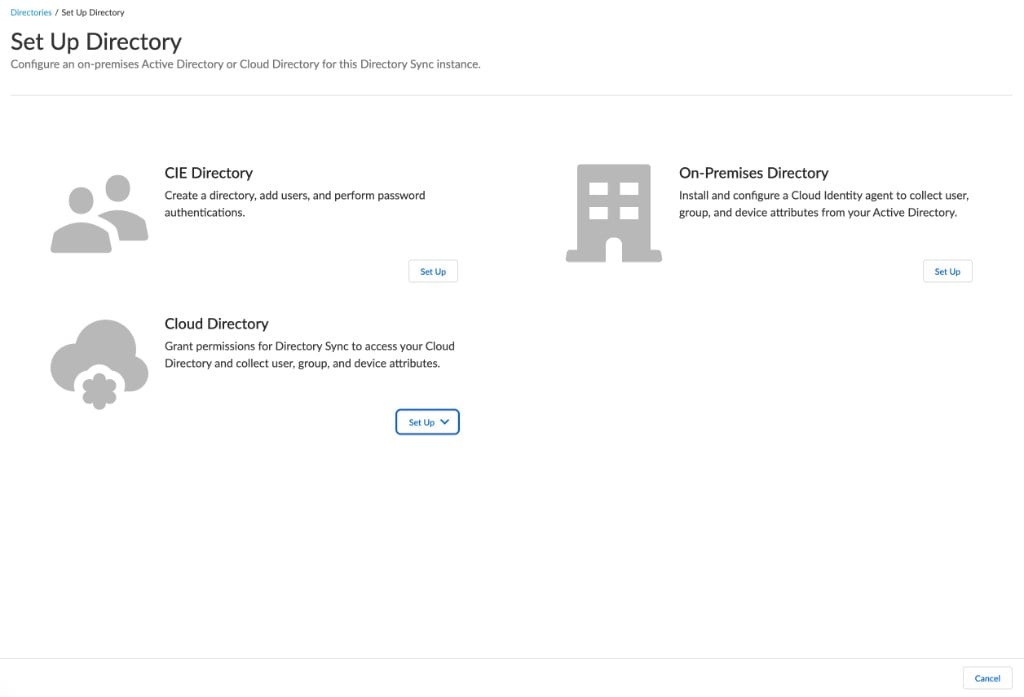 For SCM's AI Gateway integration, the relevant directory types are:
| Directory Type | Provider | Description |
| ------------------------- | --------------------------------- | ----------------------------------------------------------------- |
| **Cloud Directory** | Entra ID (Azure AD), Okta, Google | Connect a cloud identity provider. This is the most common setup. |
| **On-Premises Directory** | Active Directory | Install a Cloud Identity agent to sync from on-prem AD. |
| **CIE Directory** | CIE-native | Create a local directory managed entirely within CIE. |
SCM's AI Gateway can connect to **any** directory type that CIE supports. The "Connected Directory" dropdown will show all directories that have been successfully synced in CIE.
***
## Configuring Directory Sync in SCM's AI Gateway
Navigate to **AI Gateway → Admin Settings → Authentication → Directory Sync** in the SCM console.
For SCM's AI Gateway integration, the relevant directory types are:
| Directory Type | Provider | Description |
| ------------------------- | --------------------------------- | ----------------------------------------------------------------- |
| **Cloud Directory** | Entra ID (Azure AD), Okta, Google | Connect a cloud identity provider. This is the most common setup. |
| **On-Premises Directory** | Active Directory | Install a Cloud Identity agent to sync from on-prem AD. |
| **CIE Directory** | CIE-native | Create a local directory managed entirely within CIE. |
SCM's AI Gateway can connect to **any** directory type that CIE supports. The "Connected Directory" dropdown will show all directories that have been successfully synced in CIE.
***
## Configuring Directory Sync in SCM's AI Gateway
Navigate to **AI Gateway → Admin Settings → Authentication → Directory Sync** in the SCM console.
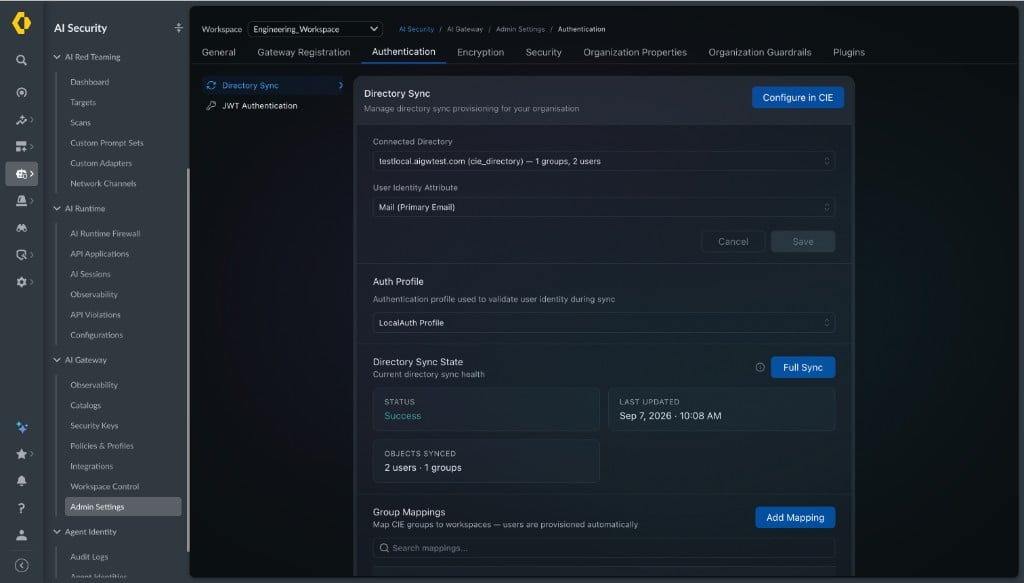 The **Configure in CIE** button redirects to your CIE Directory Sync console, where you can manage directories.
### Step 1: Select a Connected Directory
The **Connected Directory** dropdown shows all available directories from CIE, along with their provider type and entity counts (groups and users).
The **Configure in CIE** button redirects to your CIE Directory Sync console, where you can manage directories.
### Step 1: Select a Connected Directory
The **Connected Directory** dropdown shows all available directories from CIE, along with their provider type and entity counts (groups and users).
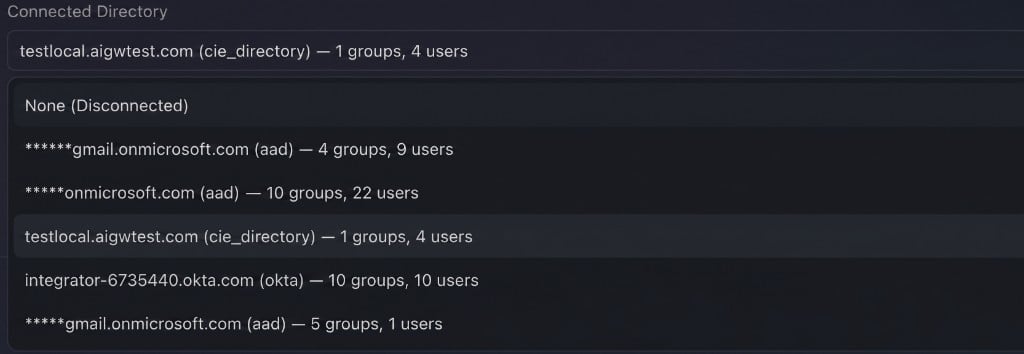 Each entry displays:
* **Domain name** — the directory domain (e.g., `corp.example.com`)
* **Provider type** — `aad` (Entra ID), `okta`, `cie_directory` (CIE-native), `ad` (on-prem)
* **Group and user counts** — number of groups and users in that directory
Select the directory you want to sync from. You can also select **None (Disconnected)** to disconnect.
Currently, only **one directory** can be connected at a time.
### Step 2: Choose the User Identity Attribute
The **User Identity Attribute** determines which CIE attribute is used as the user's email address.
Each entry displays:
* **Domain name** — the directory domain (e.g., `corp.example.com`)
* **Provider type** — `aad` (Entra ID), `okta`, `cie_directory` (CIE-native), `ad` (on-prem)
* **Group and user counts** — number of groups and users in that directory
Select the directory you want to sync from. You can also select **None (Disconnected)** to disconnect.
Currently, only **one directory** can be connected at a time.
### Step 2: Choose the User Identity Attribute
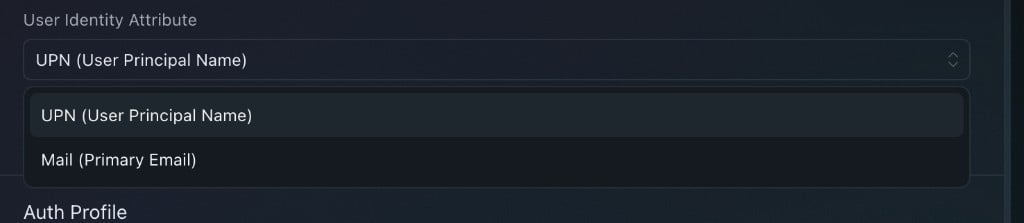
The **User Identity Attribute** determines which CIE attribute is used as the user's email address.
 | Attribute | Description | When to Use |
| ----------------------------- | ------------------------------------------------------------------------------- | ------------------------------------------------------------------------------------------------------------- |
| **UPN (User Principal Name)** | The `userPrincipalName` attribute from the directory (e.g., `john@contoso.com`) | Default choice. Use when UPN matches the user's email. |
| **Mail (Primary Email)** | The `mail` attribute from the directory | Use when UPN differs from email (e.g., UPN is `john@contoso.onmicrosoft.com` but email is `john@contoso.com`) |
If the selected attribute is **missing** for a user in CIE, that user will be **skipped** during sync. Verify that your chosen attribute is populated for all users in your directory.
Changing the User Identity Attribute after initial setup triggers an automatic **full re-sync** to update all user email addresses. This is safe — no users are removed during this re-sync.
### Step 3: Save Configuration
Click **Save** to persist your Connected Directory and User Identity Attribute selections.
Once saved, the sync configuration becomes **active** and the background sync scheduler begins monitoring for changes.
### Step 4: Select an Auth Profile
The **Auth Profile** dropdown shows authentication profiles available for your tenant. These profiles are synced from [Authentication Profiles](https://docs.paloaltonetworks.com/identity/cloud-identity-engine/authenticate-users-with-the-cloud-identity-engine) configured under CIE. The selected profile is used to validate user identity during MCP inbound authentication flows.
***
## Directory Sync State
The **Directory Sync State** section shows the current health of the sync process.
| Attribute | Description | When to Use |
| ----------------------------- | ------------------------------------------------------------------------------- | ------------------------------------------------------------------------------------------------------------- |
| **UPN (User Principal Name)** | The `userPrincipalName` attribute from the directory (e.g., `john@contoso.com`) | Default choice. Use when UPN matches the user's email. |
| **Mail (Primary Email)** | The `mail` attribute from the directory | Use when UPN differs from email (e.g., UPN is `john@contoso.onmicrosoft.com` but email is `john@contoso.com`) |
If the selected attribute is **missing** for a user in CIE, that user will be **skipped** during sync. Verify that your chosen attribute is populated for all users in your directory.
Changing the User Identity Attribute after initial setup triggers an automatic **full re-sync** to update all user email addresses. This is safe — no users are removed during this re-sync.
### Step 3: Save Configuration
Click **Save** to persist your Connected Directory and User Identity Attribute selections.
Once saved, the sync configuration becomes **active** and the background sync scheduler begins monitoring for changes.
### Step 4: Select an Auth Profile
The **Auth Profile** dropdown shows authentication profiles available for your tenant. These profiles are synced from [Authentication Profiles](https://docs.paloaltonetworks.com/identity/cloud-identity-engine/authenticate-users-with-the-cloud-identity-engine) configured under CIE. The selected profile is used to validate user identity during MCP inbound authentication flows.
***
## Directory Sync State
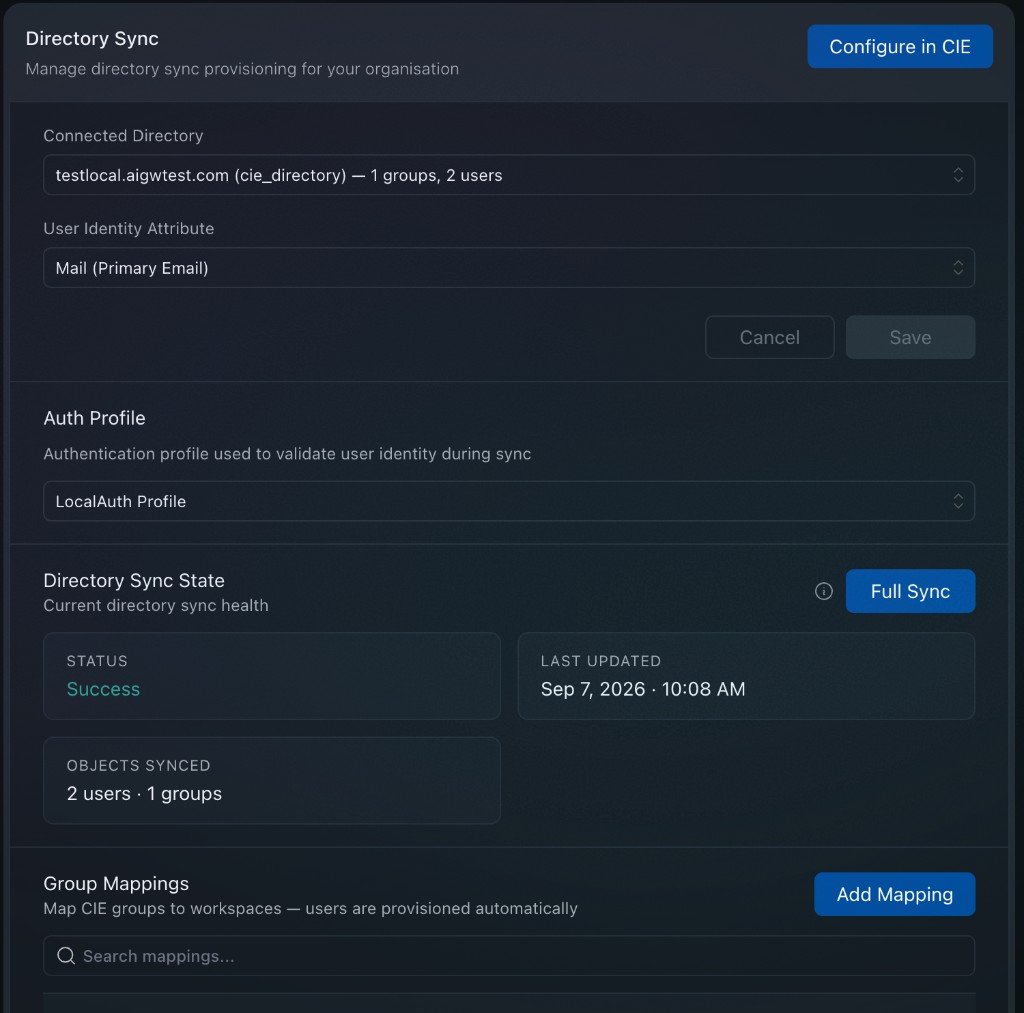
The **Directory Sync State** section shows the current health of the sync process.
 | Field | Description |
| ------------------ | ----------------------------------------------------------- |
| **Status** | Current sync status — `Success`, `In Progress`, or `Failed` |
| **Last Updated** | Timestamp of the last sync run (success or failed) |
| **Objects Synced** | Count of users and groups currently mapped to workspaces |
### Full Sync Button
Delta sync with CIE for group-membership updates happens every 15 minutes. So any update can take up to 15 minutes to reflect in AI Gateway. If CIE rebuilds its cache (approximately every week), AI Gateway does a full sync automatically.
But in case there is some issue or mismatch noted and you don't want to wait for the full sync period, you can click **Full Sync** which will do a forceful full sync of data from CIE.
If a sync is already in progress, the full sync will run once the current sync completes.
***
## Group Mappings
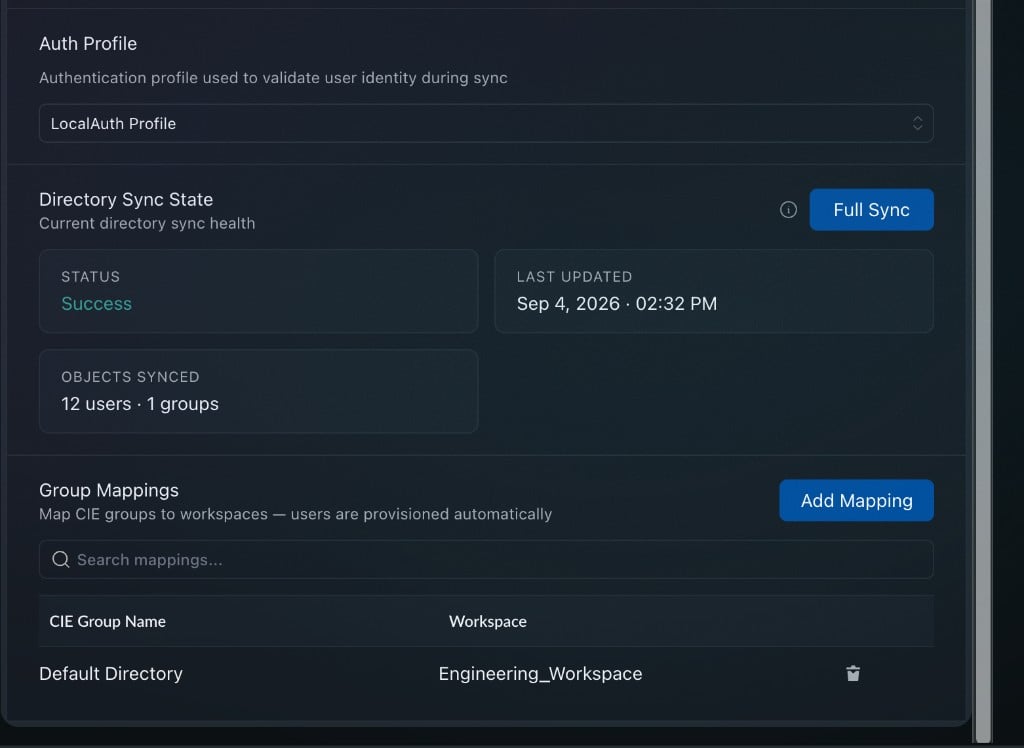
The **Group Mappings** section is where you map CIE groups to workspaces. Users in a mapped group are automatically provisioned into the corresponding workspace.
| Field | Description |
| ------------------ | ----------------------------------------------------------- |
| **Status** | Current sync status — `Success`, `In Progress`, or `Failed` |
| **Last Updated** | Timestamp of the last sync run (success or failed) |
| **Objects Synced** | Count of users and groups currently mapped to workspaces |
### Full Sync Button
Delta sync with CIE for group-membership updates happens every 15 minutes. So any update can take up to 15 minutes to reflect in AI Gateway. If CIE rebuilds its cache (approximately every week), AI Gateway does a full sync automatically.
But in case there is some issue or mismatch noted and you don't want to wait for the full sync period, you can click **Full Sync** which will do a forceful full sync of data from CIE.
If a sync is already in progress, the full sync will run once the current sync completes.
***
## Group Mappings
The **Group Mappings** section is where you map CIE groups to workspaces. Users in a mapped group are automatically provisioned into the corresponding workspace.
 ### Adding a Mapping
1. Click **Add Mapping**. The **Add Group Mapping** dialog opens:
### Adding a Mapping
1. Click **Add Mapping**. The **Add Group Mapping** dialog opens:
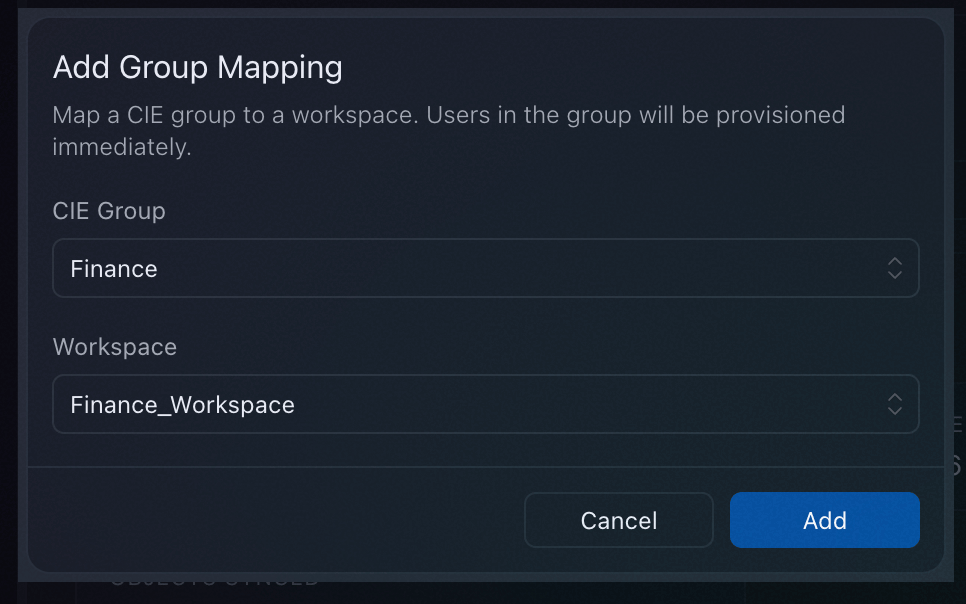 2. Select a **CIE Group** from the dropdown. The dropdown lists all groups from your connected directory.
3. Select a **Workspace** to map the group to.
4. Click **Add**.
### Mapping Rules
* **1:1 mapping** — Each group can only be mapped to one workspace, and each workspace can only have one group mapped to it
* **Workspace must exist** — The target workspace must already exist. Directory Sync does not create workspaces.
### Removing a Mapping
Click the **delete** (trash) icon next to a mapping to remove it. Users provisioned by this mapping will be **immediately removed** from that workspace.
Deleting a mapping immediately removes users from the workspace. This action cannot be undone — you would need to re-create the mapping and wait for a sync to re-provision users.
***
## Viewing Directory-Provisioned Members
Once Directory Sync is configured and group mappings are in place, users from CIE are automatically provisioned into the mapped workspaces. You can view these members through the Workspace Control page.
### Viewing Workspaces
Navigate to **AI Gateway → Workspace Control** to see all workspaces in your organization.
2. Select a **CIE Group** from the dropdown. The dropdown lists all groups from your connected directory.
3. Select a **Workspace** to map the group to.
4. Click **Add**.
### Mapping Rules
* **1:1 mapping** — Each group can only be mapped to one workspace, and each workspace can only have one group mapped to it
* **Workspace must exist** — The target workspace must already exist. Directory Sync does not create workspaces.
### Removing a Mapping
Click the **delete** (trash) icon next to a mapping to remove it. Users provisioned by this mapping will be **immediately removed** from that workspace.
Deleting a mapping immediately removes users from the workspace. This action cannot be undone — you would need to re-create the mapping and wait for a sync to re-provision users.
***
## Viewing Directory-Provisioned Members
Once Directory Sync is configured and group mappings are in place, users from CIE are automatically provisioned into the mapped workspaces. You can view these members through the Workspace Control page.
### Viewing Workspaces
Navigate to **AI Gateway → Workspace Control** to see all workspaces in your organization.
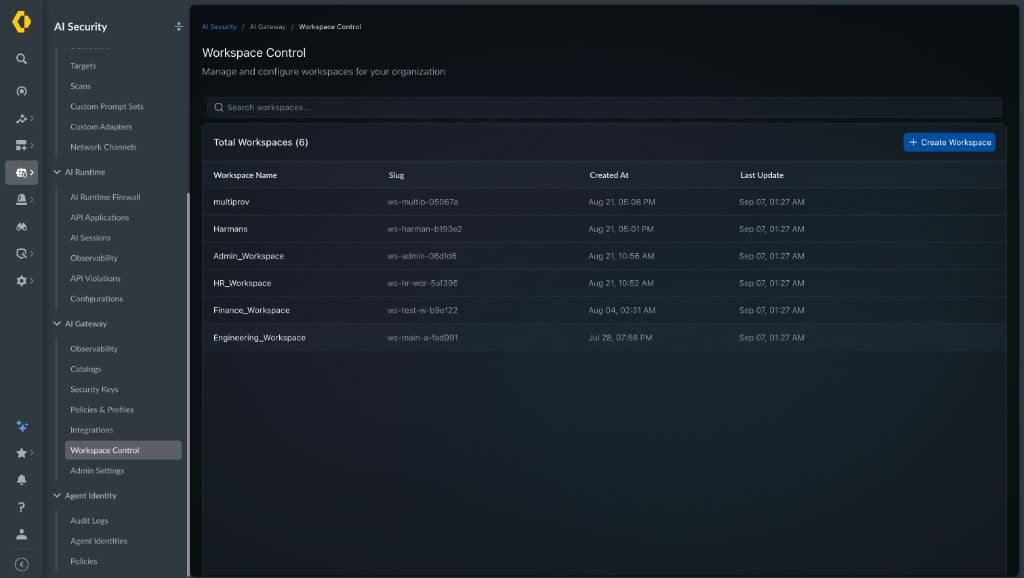 This page shows all workspaces along with their slug, creation date, and last update time. Workspaces that have CIE groups mapped to them will have directory-provisioned members automatically added.
### Viewing Workspace Members
Click on a workspace to open its settings, then navigate to the **Members** tab to see all members provisioned into that workspace.
This page shows all workspaces along with their slug, creation date, and last update time. Workspaces that have CIE groups mapped to them will have directory-provisioned members automatically added.
### Viewing Workspace Members
Click on a workspace to open its settings, then navigate to the **Members** tab to see all members provisioned into that workspace.
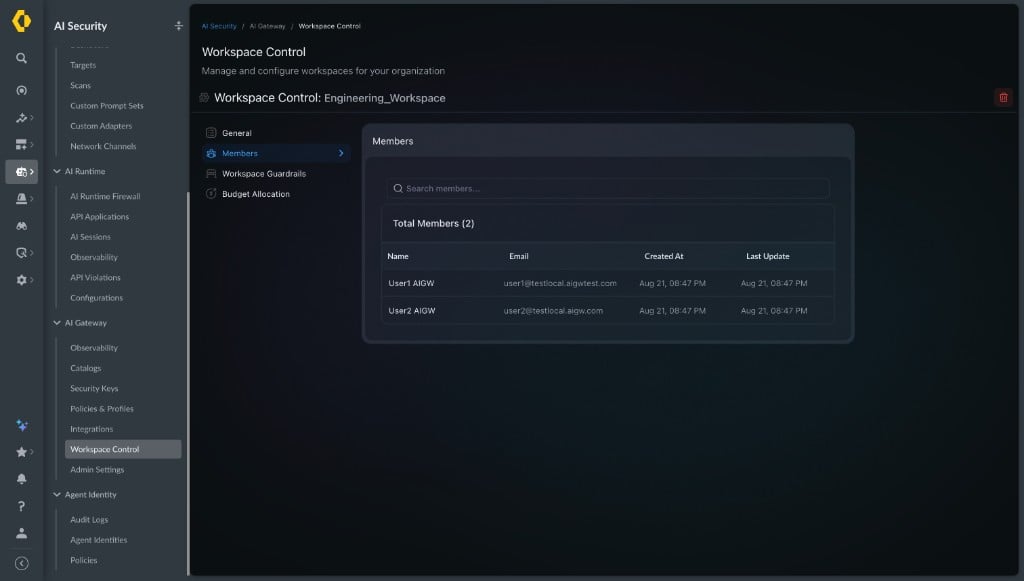 Each member entry shows:
* **Name** — the user's display name, derived from CIE's `Common-Name` attribute
* **Email** — the user's email, based on the User Identity Attribute you selected (UPN or Mail)
* **Created At** — when the user was provisioned into the workspace
* **Last Update** — when the user's membership was last updated by a sync
Members listed here are automatically managed by Directory Sync. When a user is added to or removed from the mapped CIE group, the workspace membership is updated accordingly during the next sync cycle (within 15 minutes).
***
## Creating User API Keys for Directory-Provisioned Members
Once users are provisioned into workspaces via Directory Sync, you can create **User API Keys** scoped to individual directory-provisioned members. This allows each user to have their own key for accessing AI Gateway services within their workspace.
### Navigating to Security Keys
1. Select a workspace from the **Workspace** dropdown at the top of the page.
2. Navigate to **AI Gateway → Security Keys**.
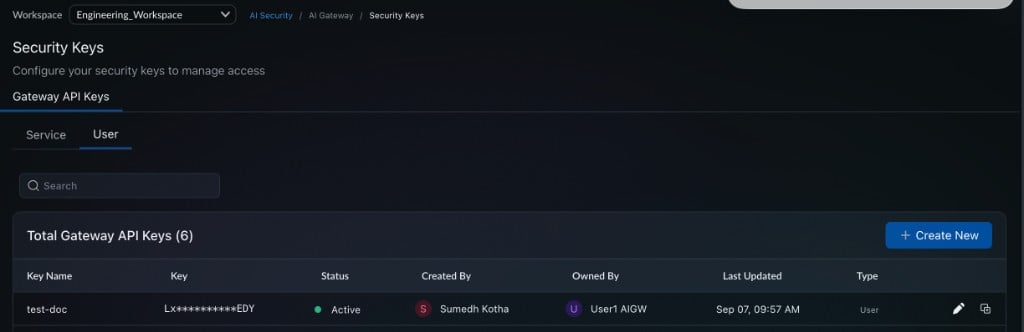
You will see the **Gateway API Keys** page with two tabs — **Service** and **User**.
Each member entry shows:
* **Name** — the user's display name, derived from CIE's `Common-Name` attribute
* **Email** — the user's email, based on the User Identity Attribute you selected (UPN or Mail)
* **Created At** — when the user was provisioned into the workspace
* **Last Update** — when the user's membership was last updated by a sync
Members listed here are automatically managed by Directory Sync. When a user is added to or removed from the mapped CIE group, the workspace membership is updated accordingly during the next sync cycle (within 15 minutes).
***
## Creating User API Keys for Directory-Provisioned Members
Once users are provisioned into workspaces via Directory Sync, you can create **User API Keys** scoped to individual directory-provisioned members. This allows each user to have their own key for accessing AI Gateway services within their workspace.
### Navigating to Security Keys
1. Select a workspace from the **Workspace** dropdown at the top of the page.
2. Navigate to **AI Gateway → Security Keys**.
You will see the **Gateway API Keys** page with two tabs — **Service** and **User**.
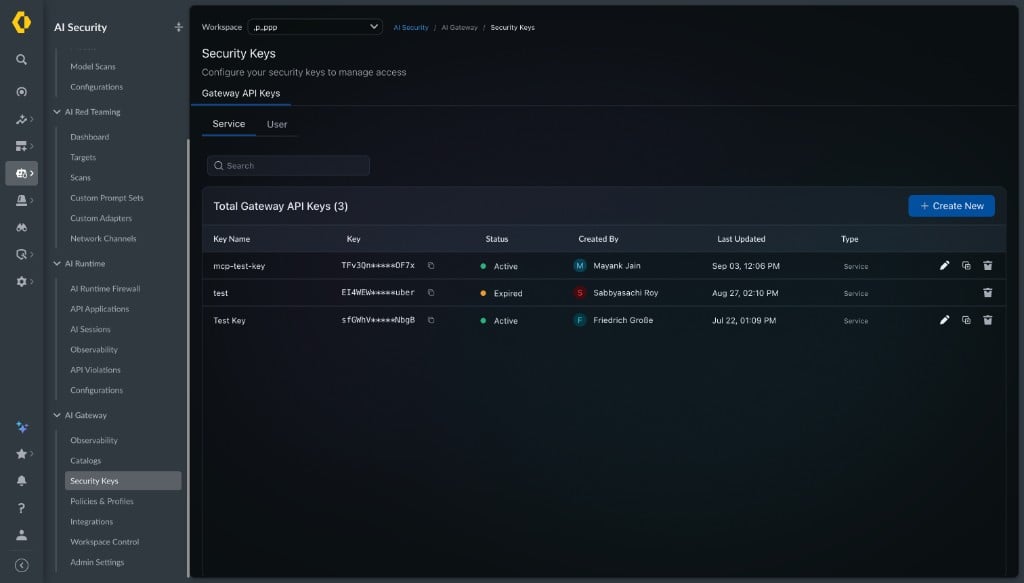 * **Service** keys are shared keys not tied to a specific user.
* **User** keys are tied to a specific directory-provisioned member.
Switch to the **User** tab to view existing user API keys.
* **Service** keys are shared keys not tied to a specific user.
* **User** keys are tied to a specific directory-provisioned member.
Switch to the **User** tab to view existing user API keys.
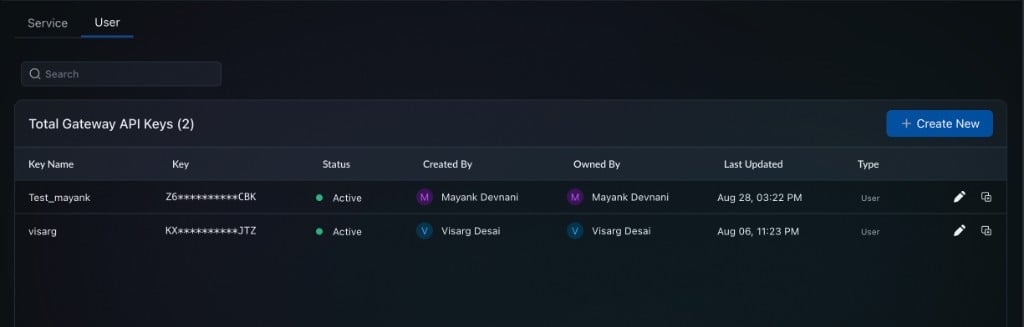 ### Creating a User API Key
1. Click **+ Create New**. The **Create New Gateway API Key** form opens.
2. Under **API Key Type**, select **User**.
### Creating a User API Key
1. Click **+ Create New**. The **Create New Gateway API Key** form opens.
2. Under **API Key Type**, select **User**.
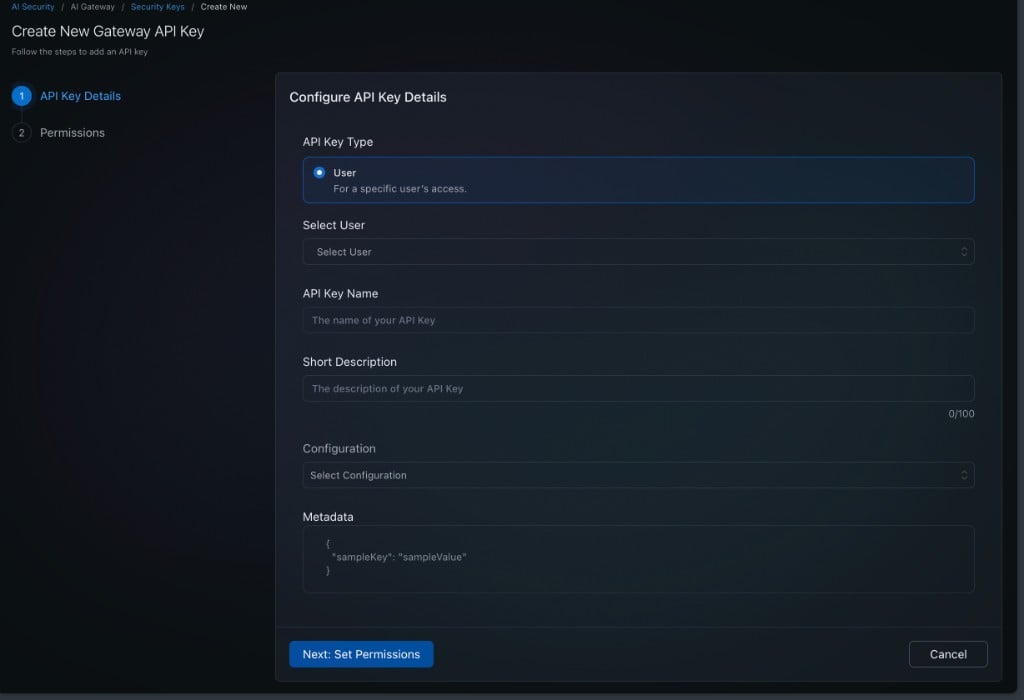 3. Under **Select User**, choose a directory-provisioned member from the dropdown. Only users who have been synced into this workspace via Directory Sync will appear here.
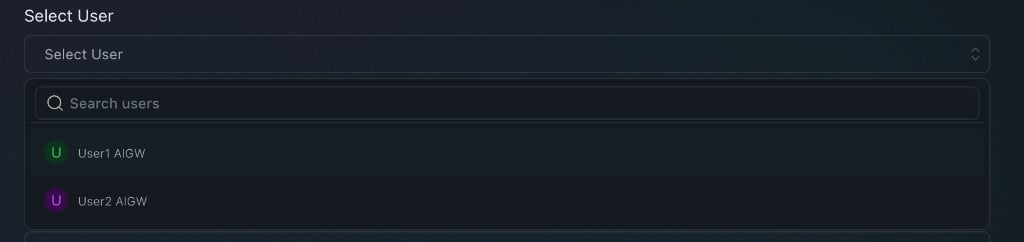 4. Enter an **API Key Name** — this is required and helps identify the key later.
5. Optionally fill in a **Short Description**, **Configuration**, and **Metadata**.
4. Enter an **API Key Name** — this is required and helps identify the key later.
5. Optionally fill in a **Short Description**, **Configuration**, and **Metadata**.
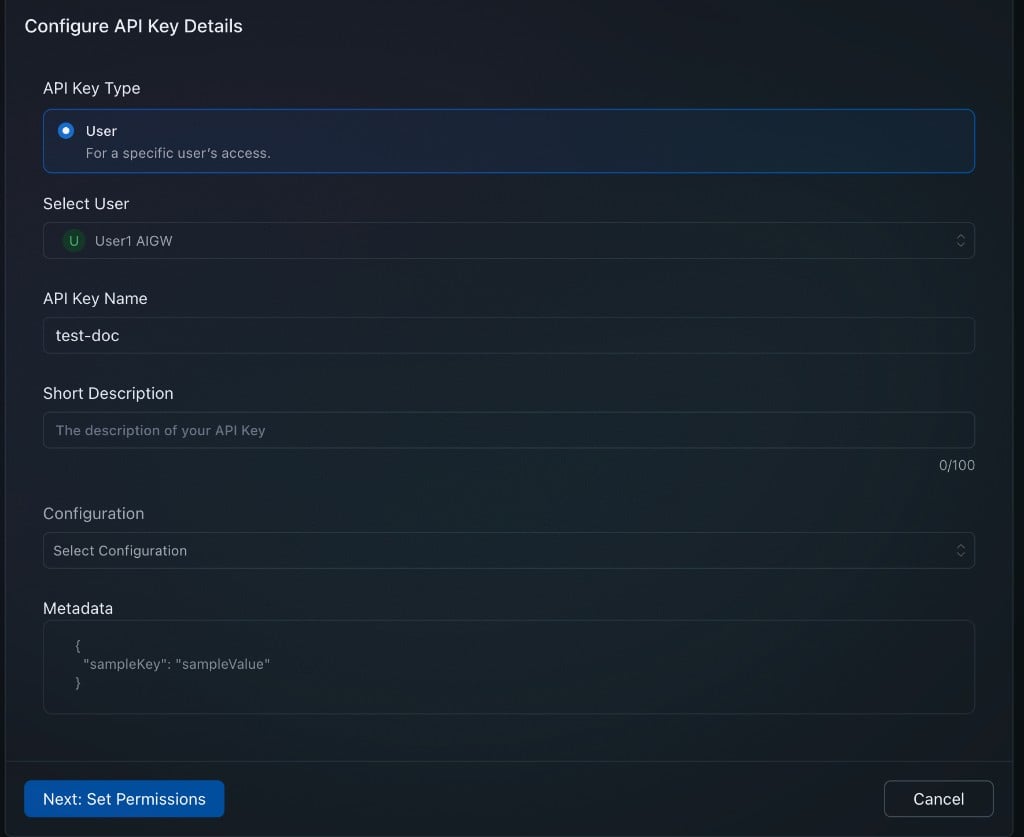 6. Click **Next: Set Permissions**.
7. On the **Permissions** step, configure which permissions this key should have. Permissions are organized by resource (Agents, Completions, Logs, Mcp, Prompts) and action (Invoke, Write, Render).
6. Click **Next: Set Permissions**.
7. On the **Permissions** step, configure which permissions this key should have. Permissions are organized by resource (Agents, Completions, Logs, Mcp, Prompts) and action (Invoke, Write, Render).
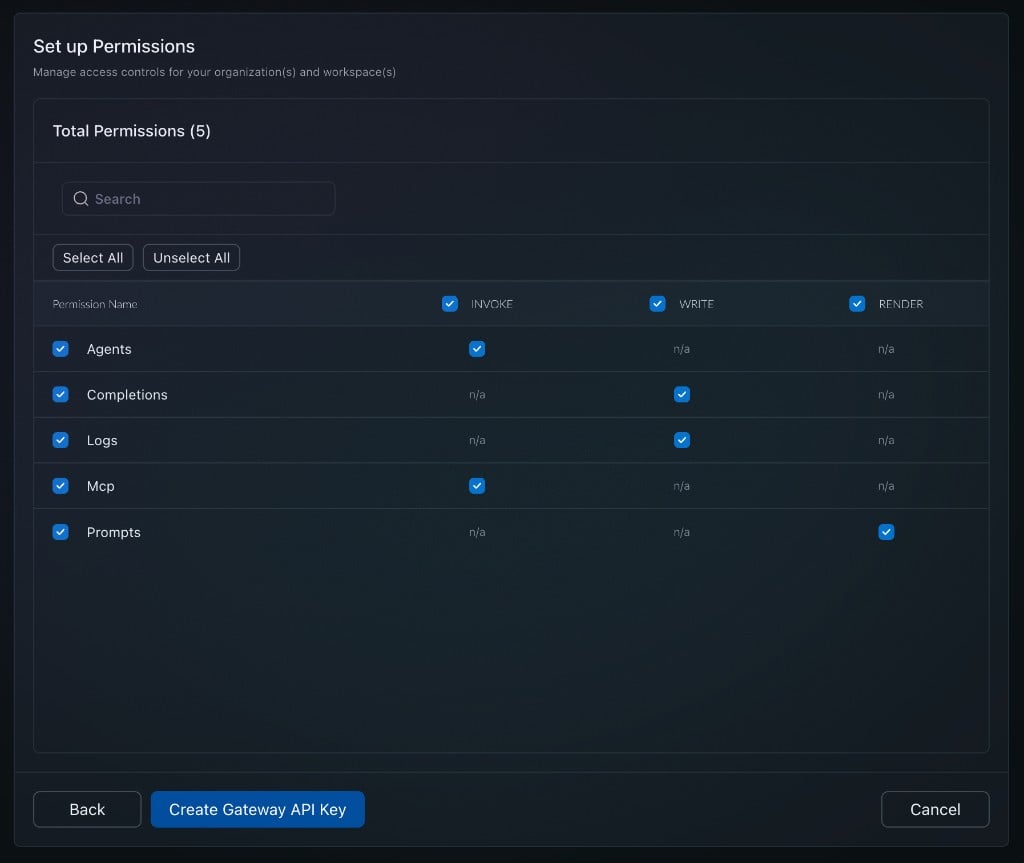 8. Click **Create Gateway API Key**.
9. The generated API key is displayed. **Copy it now** — you will not be able to view it again.
8. Click **Create Gateway API Key**.
9. The generated API key is displayed. **Copy it now** — you will not be able to view it again.
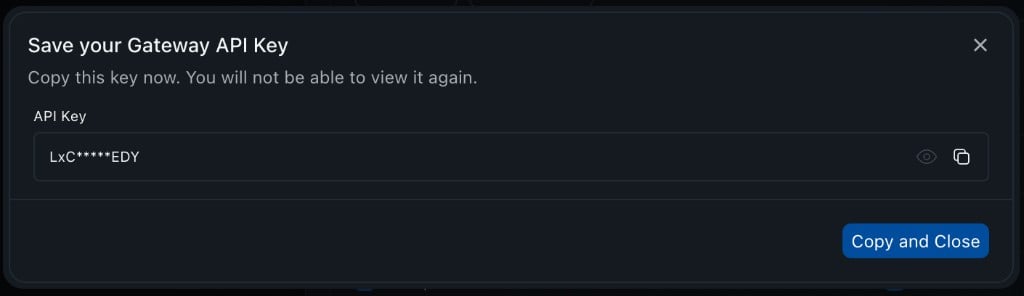 10. Click **Copy and Close**. The new key will appear in the **User** tab of Security Keys.
 You cannot create a User API key without selecting a user and providing a key name. Both fields are required.
User API keys are scoped to the selected workspace. Each key is attributed to a specific directory-provisioned member and tracks who created it and who owns it.
***
## Disabling Directory Sync
To disable Directory Sync entirely:
1. Navigate to **Admin Settings → Authentication → Directory Sync**
2. Select **None (Disconnected)** from the Connected Directory dropdown
**What happens when you disable sync:**
1. All CIE-synced users are **removed from their mapped workspaces**
2. All group-workspace mappings are removed
3. All group and sync status records are removed
4. The sync configuration is deactivated
Disabling Directory Sync immediately removes all CIE-provisioned users from their workspaces. This is a destructive action. Users can be re-provisioned by re-enabling sync and re-creating group mappings.
To **re-enable** sync after disabling:
1. Select a Connected Directory again and save
2. Group mappings do **not** carry over — you must re-create them explicitly
3. A full sync will run to provision users into the newly mapped workspaces
***
## Troubleshooting
### Common Issues
| Issue | Cause | Resolution |
| ---------------------------------------------------- | ---------------------------------------------------------------- | ------------------------------------------------------------------------------------------------------------------------------------ |
| **No domains shown** in Connected Directory dropdown | CIE not provisioned for this org, or no directories added in CIE | Ensure CIE is activated for your SCM tenant. Add directories in CIE. |
| **Users not provisioned** after mapping | Selected User Identity Attribute is missing for those users | Check CIE to confirm users have the UPN or Mail attribute populated. Switch attribute if needed. |
| **Users not removed** after deleting mapping | User belongs to another group also mapped to the same workspace | This is by design — users who have access through another mapping are not removed. |
| **Delta sync falling back to full** | CIE cache was rebuilt, or cursor expired | This is expected behavior. CIE periodically rebuilds its cache, which triggers a full resync. This acts as a self-healing mechanism. |
***
## Support
If you encounter issues with CIE Directory Sync, contact your support team.
***
Contact Us
You cannot create a User API key without selecting a user and providing a key name. Both fields are required.
User API keys are scoped to the selected workspace. Each key is attributed to a specific directory-provisioned member and tracks who created it and who owns it.
***
## Disabling Directory Sync
To disable Directory Sync entirely:
1. Navigate to **Admin Settings → Authentication → Directory Sync**
2. Select **None (Disconnected)** from the Connected Directory dropdown
**What happens when you disable sync:**
1. All CIE-synced users are **removed from their mapped workspaces**
2. All group-workspace mappings are removed
3. All group and sync status records are removed
4. The sync configuration is deactivated
Disabling Directory Sync immediately removes all CIE-provisioned users from their workspaces. This is a destructive action. Users can be re-provisioned by re-enabling sync and re-creating group mappings.
To **re-enable** sync after disabling:
1. Select a Connected Directory again and save
2. Group mappings do **not** carry over — you must re-create them explicitly
3. A full sync will run to provision users into the newly mapped workspaces
***
## Troubleshooting
### Common Issues
| Issue | Cause | Resolution |
| ---------------------------------------------------- | ---------------------------------------------------------------- | ------------------------------------------------------------------------------------------------------------------------------------ |
| **No domains shown** in Connected Directory dropdown | CIE not provisioned for this org, or no directories added in CIE | Ensure CIE is activated for your SCM tenant. Add directories in CIE. |
| **Users not provisioned** after mapping | Selected User Identity Attribute is missing for those users | Check CIE to confirm users have the UPN or Mail attribute populated. Switch attribute if needed. |
| **Users not removed** after deleting mapping | User belongs to another group also mapped to the same workspace | This is by design — users who have access through another mapping are not removed. |
| **Delta sync falling back to full** | CIE cache was rebuilt, or cursor expired | This is expected behavior. CIE periodically rebuilds its cache, which triggers a full resync. This acts as a self-healing mechanism. |
***
## Support
If you encounter issues with CIE Directory Sync, contact your support team.
***
Contact Us